Setting up GPS
The gps API allows a computer to find its current position using a wireless modem. This works by
communicating with other computers (called GPS hosts) that already know their position, finding the distance to those
computers (with modem_message), and using that to derive its position from theirs (with a process known as
trilateration.
In order for this to work, we need our GPS hosts set up in a specific pattern, each one differing in position on at least one axis. This guide takes you through the process of setting up a constellation of GPS hosts, and using them to determine a computer's position.
Prerequisites
You will need:
- Four computers.
- Four Ender Modems. Normal Wireless Modems may be used, but the range of the GPS constellation will be severely limited.
Additionally, you will need another computer and a wireless modem, in order to test that GPS works!
Picking an area
First, choose a place to build your GPS constellation. This should be a 10x10x10 cube, though you can make this smaller if needed. The larger a constellation is, the more accurate it is over large distances, but even a 5x5x5 constellation should serve a several thousand block radius.
Every computer must be loaded in order for other computers to use GPS, so it is recommended to build your GPS constellation in a single chunk that will always be loaded. You may want to choose an area in an already chunk-loaded part of your base, or in the spawn chunks. You can use F3+G to view the chunk boundaries if needed.
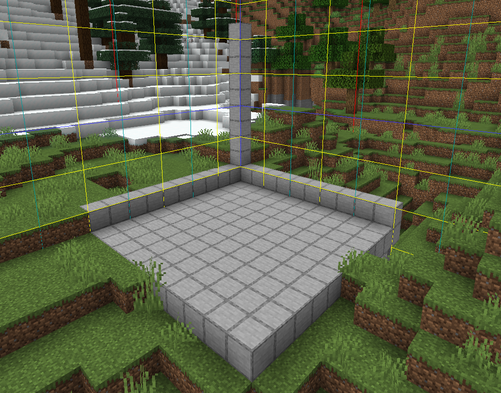
This is the example area we will be building our constellation in:
Building the constellation
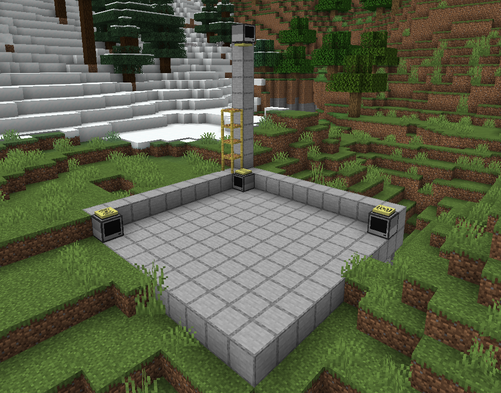
- Place down your first computer in a corner of your area, and put a modem on top.
- Head to the two adjacent corners of your area, place down another two computers and put a modem on top of each.
- Pillar up above the first computer to the top of your cube, and place the final computer. Place a modem on the computer.
You should now have something like this:
Configuring the constellation
Now that the structure of your constellation is built, we need to configure each host in it.
-
Press F3 to open Minecraft's debug screen.
-
Go back to the first computer and look at it. On the right of the screen about halfway down you should see an entry labelled
Targeted Block, the numbers correspond to the position of the block that you are looking at. Write these numbers down. -
Open the computer's UI, and run
edit startup.lua. -
Type the following code into the file, replacing
x,y, andzwith the coordinates you just wrote down.shell.run("gps", "host", x, y, z)
-
Save the file, and then reboot the computer (hold Ctrl+R or run the
rebootprogram) to run the startup program.
Repeat this process for the other three computers.
Congratulations, your constellation is now fully set up! You can test it by placing another computer close by, placing a
wireless modem on it, and running the gps locate program (or calling the gps.locate function).